Canva QR Code Integration | Sync ZodQR Directly to Canva
ZodQR allows you to connect your Canva account and sync QR codes directly to your Canva assets. Once connected, any design or styling updates made to your QR codes in ZodQR will automatically update in Canva — saving you time and keeping your designs consistent.
How to Connect Canva to ZodQR
- From your ZodQR dashboard, navigate to the Integrations page.
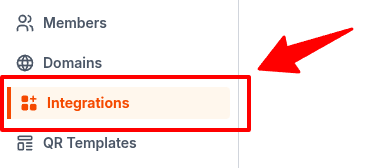
- Select the Canva tab.

- Click Connect to Canva account. You’ll be redirected to Canva’s authentication page.
ZodQR will request the following permissions to sync your QR codes and folders:- Assets: Read and write access
- Folders: Read and write access
- Profile: Read access
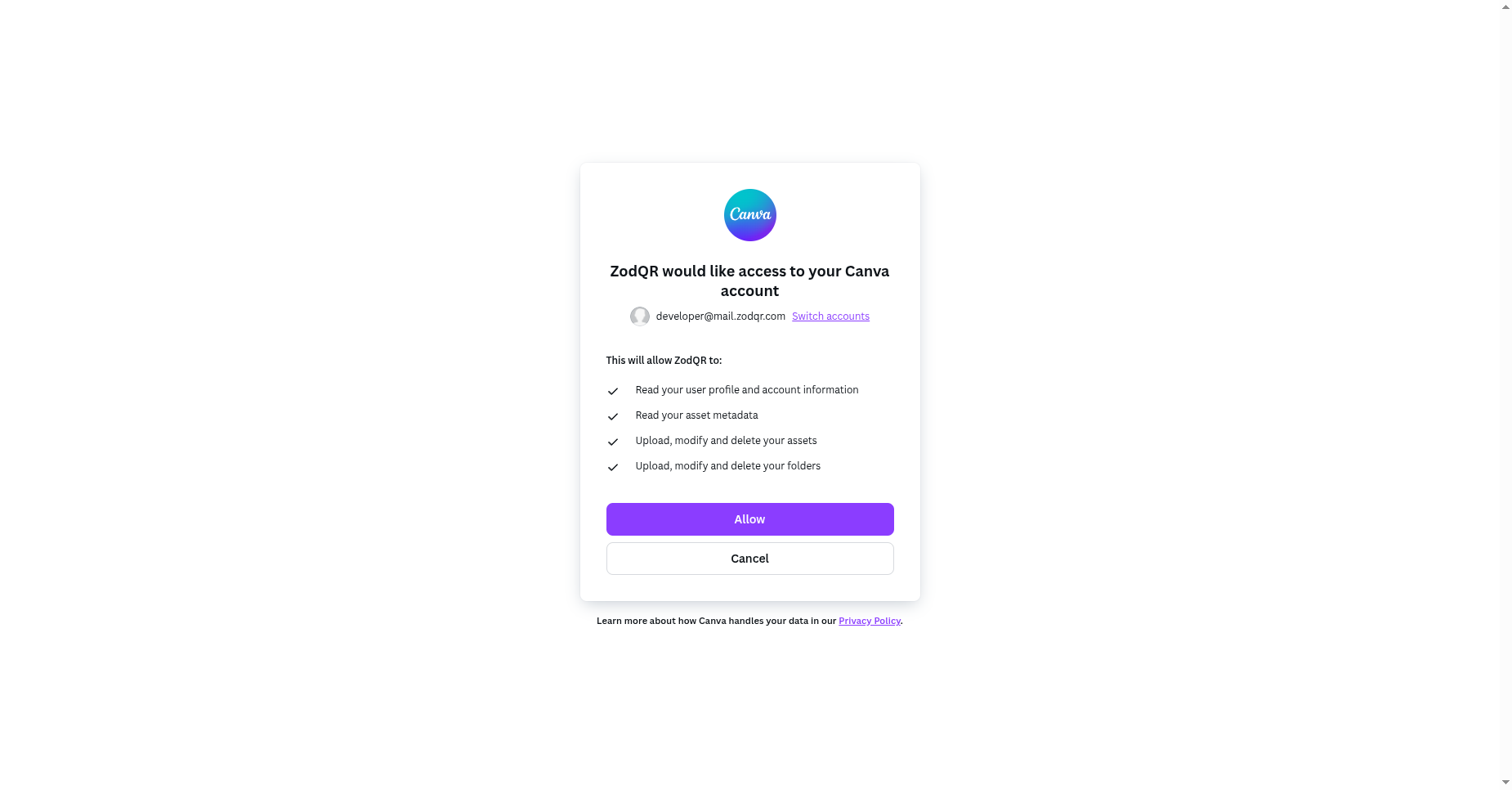
- After successful authentication, you’ll be redirected back to ZodQR.
You’ll now see your connected Canva account listed on the Integrations page.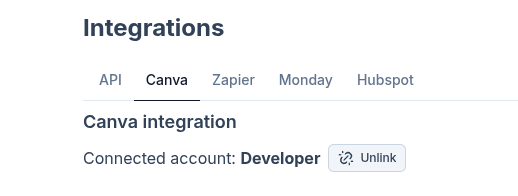
Sync Options
Once connected, you can choose how to sync your QR codes:
- Sync individual QR codes:
Upload a single QR code to Canva. Whenever you update the QR code style in ZodQR, the corresponding Canva asset will automatically update.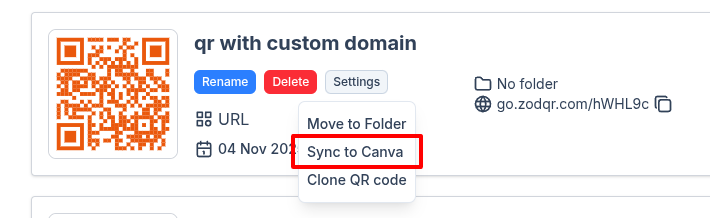
- Sync entire folders:
Sync all QR codes within a selected folder to Canva at once. This is ideal for managing multiple branded assets efficiently.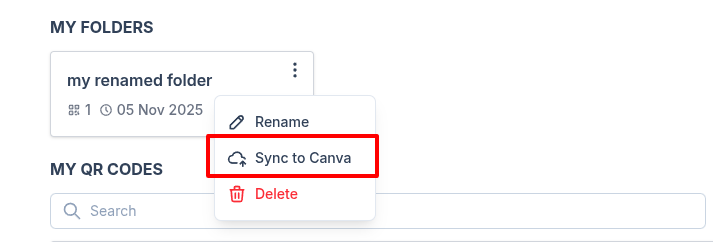
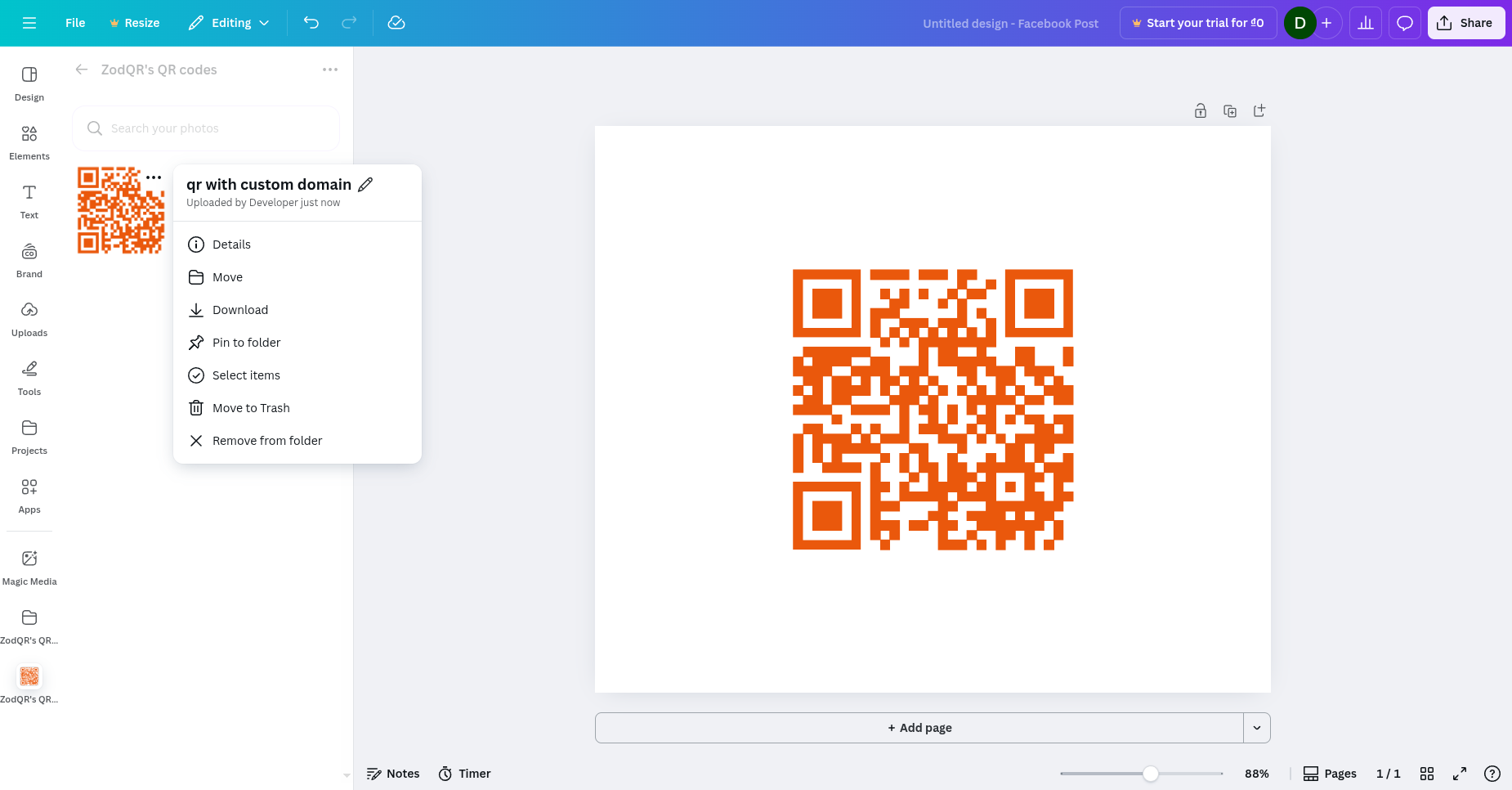
ZodQR automatically creates a root folder in your Canva account named “ZodQR’s QR Codes”, where all synced folders and QR codes are organized.
Other Pro Features You Might Like
- Advanced analytics: Get detailed insights on scan time, device type, and location for one or many QR codes.
- Team collaboration: Invite members to your workspace, assign permissions, and work together efficiently.
- Bulk generation: Generate static or dynamic QR codes in bulk to save time.
- API integration: Integrate ZodQR’s API directly into your own systems.
- Canva integration: Automatically sync QR code images to your Canva assets.
- Zapier integration: Connect ZodQR with thousands of apps via Zapier.
- Custom domain: Use your own branded domain for dynamic QR codes.